

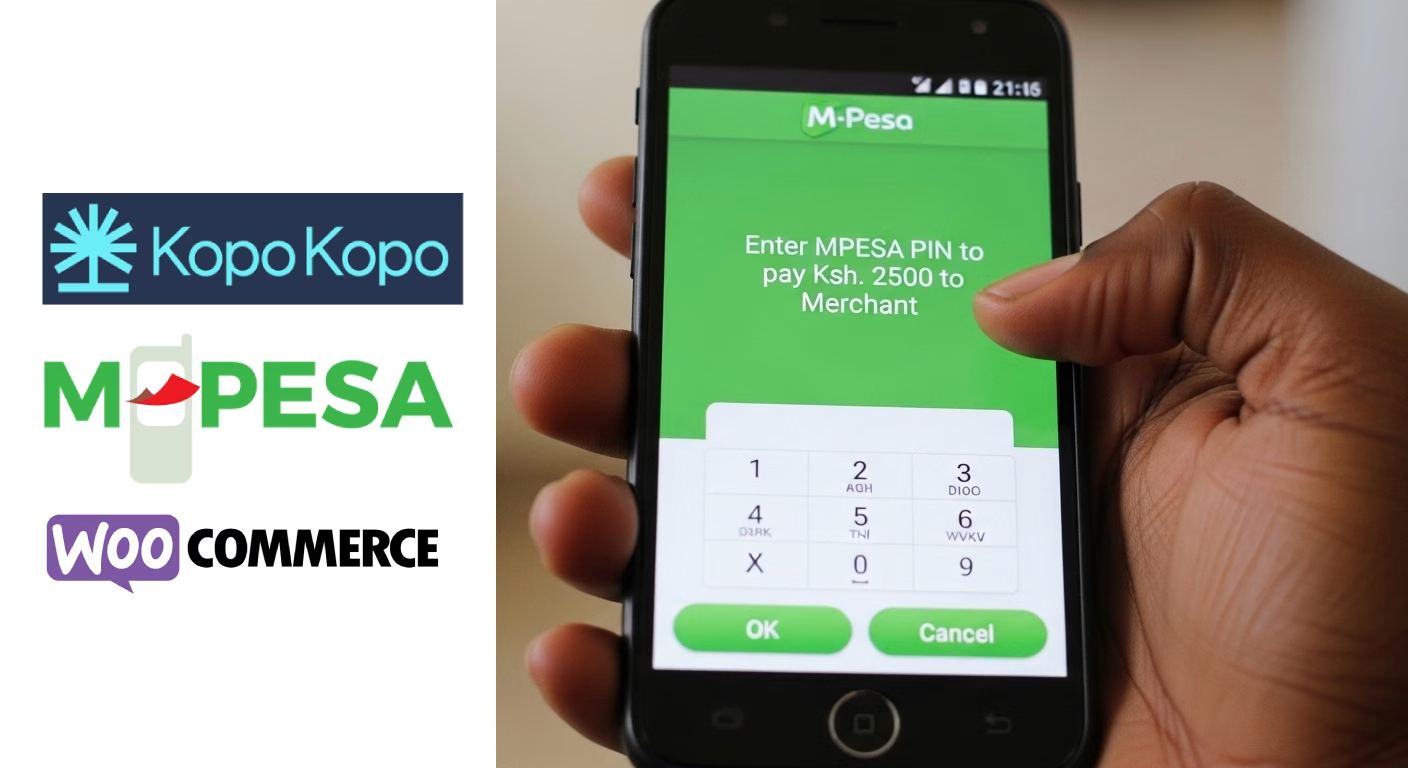
Mpesa Kopo Kopo Payment Plugin with STK push for Woocommerce
Original price was: KSh3,500.00.KSh3,000.00Current price is: KSh3,000.00.
Give your Kenyan shoppers the fastest, most secure way to pay using the M-Pesa Kopo Kopo Gateway Plugin for WooCommerce. Designed for Kenyan businesses, this plugin triggers an instant STK Push (PIN prompt) directly to your customer’s phone, ensuring an easy and convenient checkout process.
Description
Seamless M-Pesa Payments with Kopo Kopo STK Push
Stop losing customers at checkout due to complicated payment steps. Give your Kenyan shoppers the fastest, most secure way to pay using the M-Pesa Kopo Kopo Gateway Plugin for WooCommerce. Designed for Kenyan businesses, this plugin triggers an instant STK Push (PIN prompt) directly to your customer’s phone, ensuring an easy and convenient checkout process.
Why Choose This Plugin?
-
Instant STK Push Technology: No more manual Paybill or Till number entry. Your customers simply enter their phone number and receive a secure M-Pesa PIN prompt automatically.
-
Fully Automated Webhooks: The plugin “talks” to Kopo Kopo in real-time. Once the customer enters their PIN, the order status updates to Processing instantly—no manual verification needed.
-
Modern K2 Connect Support: Built on the latest Kopo Kopo API, ensuring high success rates, top-tier security, and future-proof compatibility.
-
Professional Dashboard Menu: Manage everything from a dedicated Woocommerce menu. Includes an easy Settings Shortcut and a developer support page to keep your backend organized.
-
Lightweight & Secure: Zero bloat. We’ve optimized the code to be lightning-fast, ensuring your checkout page remains snappy and responsive.
Technical Specifications
-
Compatibility: WooCommerce 8.0+ and WordPress 6.0+.
-
Currency Support: Hardcoded to KES for 100% API reliability.
-
API Mode: Supports K2 Connect (STK Push) for the modern prompt experience.
-
Setup: Easy configuration with Client ID, Client Secret, and API Key.
🚀 Quick Start Guide
Setting up your M-Pesa Kopo Kopo Gateway is simple. Follow these 5 steps to start accepting payments in minutes:
-
Installation: Go to Plugins > Add New > Upload the zip file in your WordPress dashboard and Activate it.
-
Configure API Credentials: Navigate to WooCommerce > Settings > Payments and select Kopo Kopo M-Pesa. Enter your Client ID, Client Secret, and API Key from your Kopo Kopo Developer Dashboard.
-
Set the Webhook: Copy the Webhook URL provided in the plugin settings (usually
https://yourdomain.com/wc-api/kopokopo) and paste it into the Customer Payments webhook section of your Kopo Kopo account. -
Flush Permalinks: Go to Settings > Permalinks and click Save Changes. This ensures WordPress recognizes the payment callback from M-Pesa.
-
Go Live: Switch the Environment setting from “Sandbox” to “Live” after completing a successful test transaction.
🛠️ Technical FAQs
Q: Does this plugin support STK Push (PIN prompt)? A: Yes! It is built specifically for K2 Connect, which triggers the automatic M-Pesa PIN prompt on the customer’s phone immediately after they click “Place Order.”
Q: What happens if the customer closes their browser after paying? A: No problem. The plugin uses Webhooks. As long as the customer enters their PIN on their phone, Kopo Kopo will notify your website in the background, and the order status will update automatically.
Q: Can I use this with a standard Safaricom Till Number? A: To use the Kopo Kopo API, you must have an active Kopo Kopo account. You will use the Till Number, among other details assigned to you by Kopo Kopo within their platform.
Q: Why isn’t the STK Push appearing on my phone? A: Ensure your Environment (Sandbox/Live) matches your credentials. Also, verify that your Kopo Kopo account has “Online Payments” activated. If testing in Sandbox, ensure the phone number is whitelisted in your Kopo Kopo dashboard.
Q: Does it support other currencies like USD? A: The plugin is optimized for the Kenyan market. As such, we expect that your store uses KES. This is required to ensure 100% transaction success rates.